How Do You Back Up Your iPhone Contacts?
Sync and backup are different jobs. iCloud keeps your contacts identical across devices, which is convenient until a bad merge or an accidental delete propagates everywhere. A backup is a frozen copy from a point in time. Exporting a VCF or XLSX file you store yourself gives you that frozen copy and a way back.
Does iCloud back up your contacts?
iCloud syncs contacts, it does not version them. When contacts are turned on in iCloud, every change replicates to all your devices, including deletions. There is no built-in time machine for the address book. If you remove or overwrite a contact, the old version is gone unless you exported a separate file beforehand.
The iCloud device backup does include contacts, but restoring it means rolling back your entire phone, which is rarely practical for one lost contact. A standalone export sidesteps that. You keep a small file, and restoring is as simple as opening it and importing the records you need.
How do you create a real contacts backup?
Export your full address book to a VCF or XLSX file and store it somewhere outside the phone. Open Contact Exporter, select all contacts, choose a format, and tap Export. Save the file to iCloud Drive, Dropbox or a computer with a date in the name. That dated file is your restore point if anything goes wrong later.
VCF is the better backup format because it preserves photos and rich fields and imports straight back into the iPhone Contacts app. XLSX is useful when you also want to read or edit the data. Keeping both covers restoring to a phone and reviewing the list in a spreadsheet.
How often should you back up your contacts?
Once a month is a sensible baseline for most people, and right before a phone upgrade, an iOS update, or a big cleanup. Contacts change slowly, so monthly snapshots rarely lose much. Contact Exporter can send a monthly backup reminder, which turns an easy-to-forget chore into a routine you actually keep.
If you run a business off your phone or add contacts daily, tighten that to weekly. The cost of a backup is seconds; the cost of losing a client list is real. A dated file every week means the worst case is losing a few days of additions, not the whole book.
How do you restore contacts from a backup?
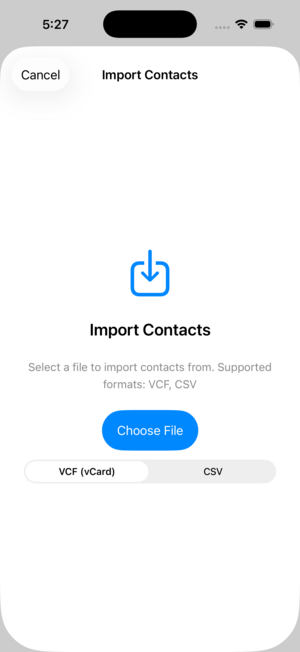
To restore, open your saved VCF on the iPhone and tap to add the cards back to Contacts, or import the file on iCloud.com. From an XLSX, you would re-export to VCF or CSV first. Restoring from a dated VCF brings names, numbers and photos back without rolling your whole phone back to an old iCloud backup.
Test a restore once so you trust the process. Export a backup, delete a single test contact, then re-import it from the file. Seeing it return confirms the file is valid and the workflow works, which is the whole point of keeping a backup in the first place.
What if your contacts are in a carrier backup?
A carrier backup lives on the carrier's servers and can vanish when the carrier is sold or drops the service. UScellular's My Contacts Backup is the current example: T-Mobile bought UScellular's wireless business in 2025, and uscellular.com now redirects to t-mobile.com. Restore those contacts to the iPhone, then export your own file.
Our guide to US Cellular's My Contacts Backup covers which app you actually have, how to get the contacts into iCloud, and what to ask T-Mobile before your account moves.
Key takeaways
- iCloud syncs contacts but does not version them; deletions propagate everywhere.
- A real backup is a separate dated file you store yourself.
- VCF preserves photos and restores straight into the Contacts app.
- Back up monthly, or weekly if you add contacts often.
- Test a restore once so you trust the file when you need it.
Frequently asked questions
- If I use iCloud, do I still need to back up contacts?
- Yes. iCloud keeps contacts in sync across devices, but it does not protect against a delete or a bad merge that replicates everywhere. A separate exported file is the only copy that survives those mistakes. Keep a dated VCF or XLSX snapshot so you can restore the exact list even when iCloud has already overwritten it.
- What format is best for a contacts backup?
- VCF is the strongest backup format because it keeps photos and rich fields and imports directly back into the iPhone Contacts app or iCloud.com. XLSX is handy when you also want to read or edit the data in a spreadsheet. Keeping both gives you an easy restore and a readable record of the list.
- Where should I store the backup file?
- Store it somewhere outside the phone so a lost or reset device does not take the backup with it. iCloud Drive, Dropbox, Google Drive or a computer all work. Put a date in the filename so you can tell snapshots apart, and keep a few generations rather than overwriting the same file each time.
- Can I automate contact backups on iPhone?
- iOS does not schedule contact exports on its own, but Contact Exporter can send a monthly reminder so you never forget. When the nudge arrives, you open the app and export in under a minute. That turns backup into a quick recurring habit rather than something you only remember after losing data.
iOS Contact Data & Migration, BigBalli. We build tools that move and protect address books across phones, spreadsheets and CRMs, and we cross-check our guides against Apple documentation.
Contact Exporter is an independent iOS utility and is not affiliated with Apple. Steps reflect current iOS and iCloud behavior and may change with future updates.