How Do You Export iPhone Contacts to Google?
Google Contacts is the hub for Gmail, Android phones and Workspace. Getting your iPhone contacts in means producing a file Google can read, then importing it on the web. A VCF carries the most detail, a CSV is the most forgiving. Either way it is one import, not a contact-by-contact slog.
Which format does Google Contacts accept?
Google Contacts imports both vCard (.vcf) and CSV. VCF preserves photos and several phone numbers, emails or addresses per contact. CSV is a flat table that imports cleanly when you only need core fields. For a full migration with faces attached, choose VCF; for a quick list into Gmail, CSV is fine and maps easily.
If you maintain a specific structure, Google publishes its CSV header format, so matching your columns to it makes the import nearly automatic. With VCF there is little to map because the format is standardized, which is one reason it is the lower-effort choice for a complete transfer.
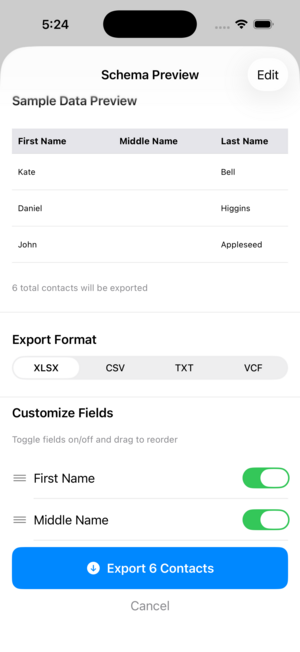
How do you export the contacts from your iPhone?
Open Contact Exporter, select all contacts or specific groups, and choose VCF or CSV. Enable photos if you pick VCF and want faces to come along. Tap Export to build the file on your device, then share it to email or Files. Have the file ready on a computer where you can sign into Google Contacts.
Selecting groups lets you move only what you want, such as work contacts into a Workspace account. Cleaning duplicates before export keeps the Google side tidy, since importing a messy file just recreates the same clutter in a new place.
How do you import the file into Google Contacts?
Go to contacts.google.com on a computer, click Import in the left sidebar, and select your VCF or CSV file. Google adds the contacts to the account and labels the batch so you can review or undo it. Your Android phone and Gmail show the new contacts within minutes once the account syncs.
The import label is the safety feature here. If something looks wrong, you delete that label's contacts in one move and try again with a corrected file. Always do this on the web rather than the phone, because the web tool gives you that review and rollback.
How do you avoid duplicates in Google after importing?
Import once, and clean the iPhone list before exporting so you are not carrying duplicates over. After importing, use the Merge and fix tool in Google Contacts to combine any matches that slipped through. Re-importing the same file is the usual cause of doubles, so import a file only one time per account.
If you already have contacts in the Google account, expect some overlap and plan to run Merge and fix afterward. It groups likely duplicates and combines them in a couple of clicks. Pairing that with a pre-export cleanup on the iPhone keeps the final Google list clean.
Key takeaways
- Google Contacts imports both VCF and CSV files.
- VCF keeps photos and rich fields; CSV is simpler for core data.
- Contact Exporter writes either format on-device from your iPhone.
- Import at contacts.google.com on the web for review and undo.
- Clean duplicates before export and run Merge and fix after.
Frequently asked questions
- Can I sync iPhone contacts to Google without a file?
- You can add a Google account in iOS Settings under Contacts and turn on syncing, but that mixes accounts and can create duplicates across iCloud and Google. A one-time file import is cleaner and gives you a clear point-in-time transfer. Export a VCF or CSV, import it once, and you control exactly what lands in Google.
- Will my contact photos appear in Google Contacts?
- Only if you export to VCF with photos enabled. The vCard format embeds each image inside the contact, and Google Contacts reads it on import. CSV is a flat table with no place for an image, so photos drop when you use it. For faces in Gmail and on Android, VCF is the format to choose.
- Do I need a computer to import into Google?
- The most reliable path uses contacts.google.com in a browser, which is easiest on a computer and gives you a review and undo. You can reach the site on a phone browser too, but the desktop experience makes selecting the file and confirming the import simpler, especially for a large address book.
- How do I move only my work contacts to Workspace?
- Use groups. In Contact Exporter, select just the group you want, such as Clients or Work, and export only those contacts to a file. Import that file into the Google Workspace account. This keeps personal contacts out of the work account and gives each account a focused, relevant address book.
iOS Contact Data & Migration, BigBalli. We build tools that move address books between phones, spreadsheets and CRMs, and we cross-check our guides against Apple and Google documentation.
Contact Exporter is an independent iOS utility and is not affiliated with Apple or Google. Steps reflect current iOS and Google Contacts behavior and may change with future updates.