How Do You Export iPhone Contacts to Excel?
Apple gives you no Export button in the Contacts app, so a clean spreadsheet takes a tool that turns each contact into a row. Contact Exporter does this in three taps: pick the contacts, pick the fields, tap Export. You get an .xlsx that opens in Excel, Numbers or Google Sheets with headers already in place.
Can you export iPhone contacts to Excel directly?
No. iOS has no native contacts export. The Contacts app can share a single card or a group as a vCard (.vcf), but it never produces a spreadsheet. Excel will not open a .vcf as a table, so you either convert the vCard or use an app that writes XLSX directly from your address book.
The vCard format stacks every field into a text block, which is why Excel shows it as one long column of gibberish. A spreadsheet needs columns: First Name, Last Name, Phone, Email. That mapping is the actual work, and it is what a dedicated exporter handles for you instead of leaving you to parse raw vCard syntax by hand.
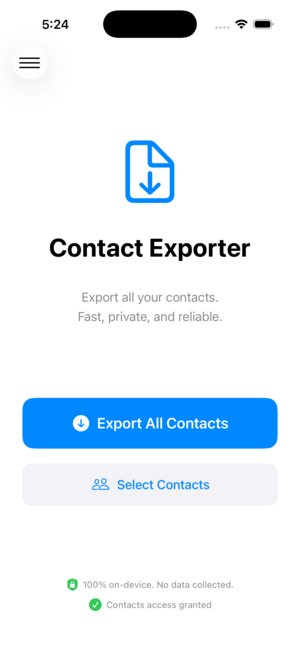
How do you export iPhone contacts to an XLSX file?
Open Contact Exporter, choose all contacts or a group, pick XLSX as the format, and select the fields you want as columns. Tap Export and the app builds the spreadsheet on your device. Then share it to email, Files or a Mac by AirDrop. The whole process takes under a minute for a typical address book.
Because the file is built locally, your contacts never pass through a web server. That matters for client lists and personal numbers. Open the result in Excel and you will see one header row and one row per person, ready to sort, filter or feed into a mail merge.
Which contact fields should you include as columns?
Include the fields you actually use downstream. For a mail merge you need first name, last name and a mailing address. For a CRM import you want phone, email and company. Contact Exporter lets you toggle each field, so you avoid a spreadsheet cluttered with empty columns for fields most of your contacts never filled in.
Phone numbers deserve attention. If your CRM or dialer expects E.164 format, normalize the numbers on export so +1 415 555 0123 lands in one consistent shape. Contact Exporter can auto-format numbers against country presets, which spares you a find-and-replace pass in Excel later.
How do you get the spreadsheet off your iPhone?
After export, use the iOS share sheet. AirDrop sends the file straight to a nearby Mac, email attaches it to a message, and Save to Files drops it in iCloud Drive or On My iPhone. From a Mac you double-click to open in Excel or Numbers. Cloud storage like Dropbox works the same way through the share sheet.
AirDrop is the cleanest path to a computer because it skips attachment size limits and keeps the file private. If you are moving to a Windows PC, email or a cloud folder is simpler. Either way the .xlsx arrives intact and opens without conversion.
Key takeaways
- iOS has no native export to Excel; the Contacts app only shares vCards.
- Excel cannot read a .vcf as a table, so you need XLSX with mapped columns.
- Contact Exporter writes the spreadsheet on-device in three taps.
- Pick only the fields you use to keep the spreadsheet clean.
- AirDrop, email or Files moves the .xlsx to a computer without conversion.
Frequently asked questions
- Can I export iPhone contacts to Excel for free?
- iOS itself offers no free export to Excel. You can download a vCard from iCloud.com at no cost, but converting it to a spreadsheet still takes a separate tool. An app that exports XLSX directly is the simplest route, and Contact Exporter is free to download from the App Store so you can try it before committing.
- Does exporting contacts upload them to a server?
- With Contact Exporter, no. The spreadsheet is built on your device from the local address book, then handed to the iOS share sheet. Nothing is uploaded unless you choose to email it or save it to a cloud folder yourself. That keeps client lists and personal numbers off third-party servers.
- Will the export include photos and addresses?
- Addresses export as columns when you include them. Contact photos can be embedded in an XLSX or VCF export if you enable that option, so faces stay attached to names during a migration. Most users keep names, numbers, emails and mailing addresses and leave photos off to keep the file small.
- Why does my vCard look like one giant column in Excel?
- Because a vCard is a stacked text format, not a table. Excel reads the whole card into a single cell or column instead of splitting it into fields. To get proper columns you either run the vCard through a converter or export directly to XLSX, which already maps each field to its own column.
iOS Contact Data & Migration, BigBalli. We build tools that move address books between phones, spreadsheets and CRMs, and we cross-check our guides against Apple and Microsoft documentation.
Contact Exporter is an independent iOS utility and is not affiliated with Apple, Microsoft or Google. Steps reflect current iOS behavior and may change with future updates.