How Do You Export iPhone Contacts to CSV?
CSV is plain text with one row per contact and a comma between each field. Tools love it because it imports anywhere. The catch is encoding and field mapping, which is where exports made by hand fall apart. Contact Exporter writes a clean, UTF-8 CSV with proper quoting so a name like O'Brien or an address with a comma does not break the columns.
Why use CSV instead of vCard or Excel?
CSV is the lowest common denominator for contact imports. Outlook, Google Contacts, Mailchimp, Salesforce and HubSpot all accept it, while many reject vCards or proprietary .xlsx. CSV is also human readable, so you can open it in any editor to spot a problem before importing. For moving contacts between systems, CSV is the safe default.
Excel is great for viewing and editing, but some import tools want raw CSV specifically. A vCard preserves rich fields like photos, yet many CRMs cannot read it. CSV trades richness for compatibility, and for migrations that trade is almost always worth it.
How do you export iPhone contacts to CSV?
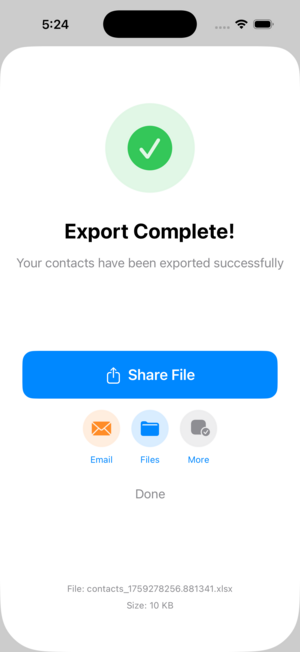
Open Contact Exporter, select all contacts or a group, choose CSV as the format, and tick the fields you want as columns. Tap Export and the app writes the file locally. Share it to email, Files or a Mac with AirDrop. The CSV opens in any spreadsheet and imports straight into your CRM or mail tool.
Set your columns to match the target system before you import. Google Contacts and Outlook both publish their expected header names, and matching them up front saves a tedious field-mapping step on the other side. A few minutes choosing fields beats an hour fixing a botched import.
What encoding problems should you avoid?
The classic CSV failure is encoding. If a file is not UTF-8, accented names like Muller or Garcia turn into garbled symbols, and emoji vanish. Contact Exporter writes UTF-8 by default and quotes any field that contains a comma, so addresses and company names stay in their own columns instead of spilling sideways.
If you open a CSV in Excel and see broken characters, the encoding is the culprit, not the data. Re-importing the same file with the correct UTF-8 setting fixes it. Exporting as UTF-8 from the start avoids that whole detour and keeps international contacts readable everywhere.
How do you import the CSV into your tool?
In Google Contacts, open Import and select the CSV. In Outlook, use File then Open and Export then Import/Export. Mailchimp and HubSpot have an Import button on the contacts screen. Each tool maps your headers to its fields; matching column names up front makes this nearly automatic and avoids manual remapping.
Always import a small test batch first if the list is large. Export ten contacts, import them, and confirm names, emails and phone numbers landed in the right fields. Once the mapping looks right, run the full file. This catches a wrong delimiter or header mismatch before it pollutes thousands of records.
Key takeaways
- CSV is the most widely accepted contact format for CRMs and mail tools.
- The iPhone has no native CSV export; an app builds it for you.
- Contact Exporter writes UTF-8 CSV with proper quoting on-device.
- Match your column headers to the target system to skip remapping.
- Test with a small batch before importing a large list.
Frequently asked questions
- What is the difference between CSV and vCard for contacts?
- A CSV is a table with one row per contact and columns for each field, ideal for spreadsheets and CRM imports. A vCard packs each contact into a stacked text block and can carry photos and rich fields, but many tools cannot read it. Use CSV for compatibility and vCard when you need to preserve photos.
- Can I open the exported CSV in Excel?
- Yes. Any CSV opens in Excel, Numbers or Google Sheets. If accented characters look broken, the file was opened with the wrong encoding; choosing UTF-8 on import fixes it. Contact Exporter writes UTF-8 by default, so international names and addresses display correctly in most spreadsheet apps without extra steps.
- Will commas in addresses break my CSV?
- Not if the file quotes fields properly. A well-formed CSV wraps any value containing a comma in quotation marks so it stays in one column. Contact Exporter handles this automatically, which means a street address like 1, Market Street will not spill into the next column or shift your data out of alignment.
- How many contacts can I export at once?
- There is no practical limit for a normal address book. Whether you have 200 or 20,000 contacts, the export runs on-device and writes them all to one CSV. Larger lists take a few extra seconds. For very large imports, split the file or test a batch first to confirm your CRM accepts the full set.
iOS Contact Data & Migration, BigBalli. We build tools that move address books between phones, spreadsheets and CRMs, and we cross-check our guides against Google and Microsoft documentation.
Contact Exporter is an independent iOS utility and is not affiliated with Apple, Google or Microsoft. Steps reflect current iOS behavior and may change with future updates.