How Do You Print Mailing Labels From iPhone Contacts?
Printing addresses from a phone usually means exporting to a computer, building a mail merge in Word, and fighting the alignment. Skipping all of that, you can map contact addresses straight onto an Avery template and get a PDF that lines up with the sheet in your printer. One group in, one PDF out.
Can you print labels directly from iPhone Contacts?
No. The iOS Contacts app has no label or mail-merge feature. It can share a card, but it cannot lay addresses onto a grid for printing. To print labels you need a tool that takes your contacts, places each address in a cell sized to an Avery sheet, and outputs a PDF you can send to any printer.
This is why people reach for Word mail merge or a desktop spreadsheet. Those work, but they mean moving data off the phone and aligning templates by hand. Generating the labeled PDF on the iPhone removes both steps and keeps the addresses where they already live.
Which Avery label sheets are supported?
Standard Avery sizes cover most mailing jobs, from small return-address labels to full shipping labels. Pick the layout that matches the product number printed on your sheet box, and the PDF aligns to that grid. Matching the Avery number is the one step that determines whether your text lands inside the labels or drifts across the seams.
| Common Avery size | Labels per sheet | Typical use |
|---|---|---|
| 30 per sheet | 30 | Return address, holiday cards |
| 14 per sheet | 14 | Mailing and shipping |
| 10 per sheet | 10 | Larger shipping labels |
| 8 per sheet | 8 | Shipping, name badges |
| 6 per sheet | 6 | Wide shipping labels |
Always confirm the product number on your box before printing a full sheet. Avery reuses dimensions across products, but the safest check is a single test sheet on plain paper held against a real label sheet to confirm the boxes line up.
How do you make a label PDF from a group?
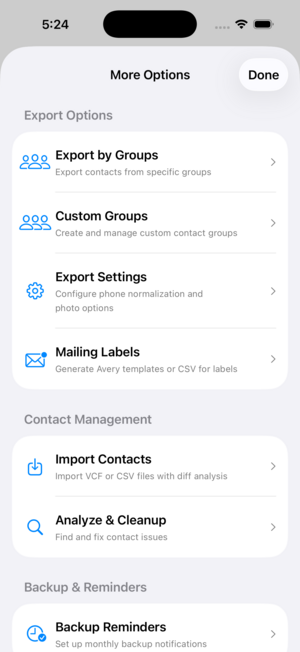
Create or pick a group such as Holiday Cards, choose the Mailing Labels option, and select the Avery layout for your sheets. Contact Exporter places each contact's mailing address into the grid and exports a PDF. Open it, print to your label sheets, and the addresses land in their cells, ready to peel and stick.
Because the output is a standard PDF, you can print it from the iPhone over AirPrint or send it to a computer first. Printing a test page on plain paper before loading real label stock saves a wasted sheet if the alignment needs a nudge.
How do you keep your label list clean?
Labels are only as good as the addresses behind them. Before printing, check for contacts missing a street or postal code and fix duplicates so no one gets two cards. Contact Exporter flags missing fields and duplicate entries, so you catch the gaps before they become wasted labels and returned mail.
Keeping a dedicated group, like Holiday Cards, means next year you reprint without rebuilding the list. Add and remove people through the year, run a quick check for missing addresses each December, and the annual mailing becomes a few taps instead of an afternoon.
Key takeaways
- iOS Contacts cannot print mailing labels on its own.
- A label PDF maps contact addresses onto a standard Avery grid.
- Match the Avery product number so text lands inside the labels.
- Contact Exporter builds the PDF from a group, no Word or mail merge.
- Check for missing addresses and duplicates before printing a full sheet.
Frequently asked questions
- Do I need a Mac or Word to print labels?
- No. The point of generating the PDF on your iPhone is to skip Word mail merge entirely. Contact Exporter lays the addresses onto an Avery layout and outputs a PDF you can print over AirPrint or send to a computer. Word and a desktop mail merge still work, but they are no longer required for a clean label run.
- How do I know which Avery template to choose?
- Read the product number on your box of label sheets, such as a four-digit Avery code, and pick the matching layout in the app. If you are unsure, Avery's website maps every product number to its dimensions. Choosing the right one is what keeps each address centered in its label instead of bleeding across the gaps.
- Can I reuse the same list every year?
- Yes. Keep the recipients in a dedicated group like Holiday Cards. Each year you select that group, generate the label PDF, and print, without rebuilding the list. Add or remove people through the year and run a quick check for missing addresses before printing, so the annual mailing stays a few-tap job.
- What if some contacts are missing addresses?
- Those contacts produce blank or partial labels, which waste sheets and cause returned mail. Before printing, use the analysis view to find contacts missing a street, city or postal code and fill the gaps. Fixing the data once means every label in the run is complete, and you do not discover the holes after printing.
iOS Contact Data & Migration, BigBalli. We build tools that export, clean and print from address books, and we cross-check our guides against Apple and Avery documentation.
Contact Exporter is an independent iOS utility and is not affiliated with Apple or Avery. Always print a test sheet before using real label stock. Steps reflect current iOS behavior and may change with future updates.